


If you are still relying solely on a password to secure your digital life, you are practically leaving your front door unlocked. Cyber attacks, credential stuffing, and sophisticated phishing campaigns have made traditional passwords obsolete. In India, where digital banking, UPI transactions, and social commerce are part of daily life, securing your online accounts is no longer optional—it is a necessity.
Two-Factor Authentication (2FA) adds a vital second layer of defense. Even if a hacker manages to crack, guess, or steal your password, they cannot access your account without the second verification factor. This guide provides a practical, step-by-step roadmap to setting up 2FA across your most critical accounts, tailored specifically for Indian users facing real-world challenges like SIM-swapping fraud and telecom network drops.
The Bottom Line Up Front (BLUF)
To secure your digital identity immediately, transition away from SMS-based OTPs and migrate to Authenticator Apps (TOTP) or Hardware Security Keys. Download an app like Google Authenticator, Aegis, or Microsoft Authenticator, enable 2FA in your account security settings, scan the provided QR code, and—most importantly—safeguard your recovery/backup codes. If you lose those backup codes and your phone, you risk being permanently locked out of your accounts.
Why Traditional SMS OTPs are Failing Indian Users
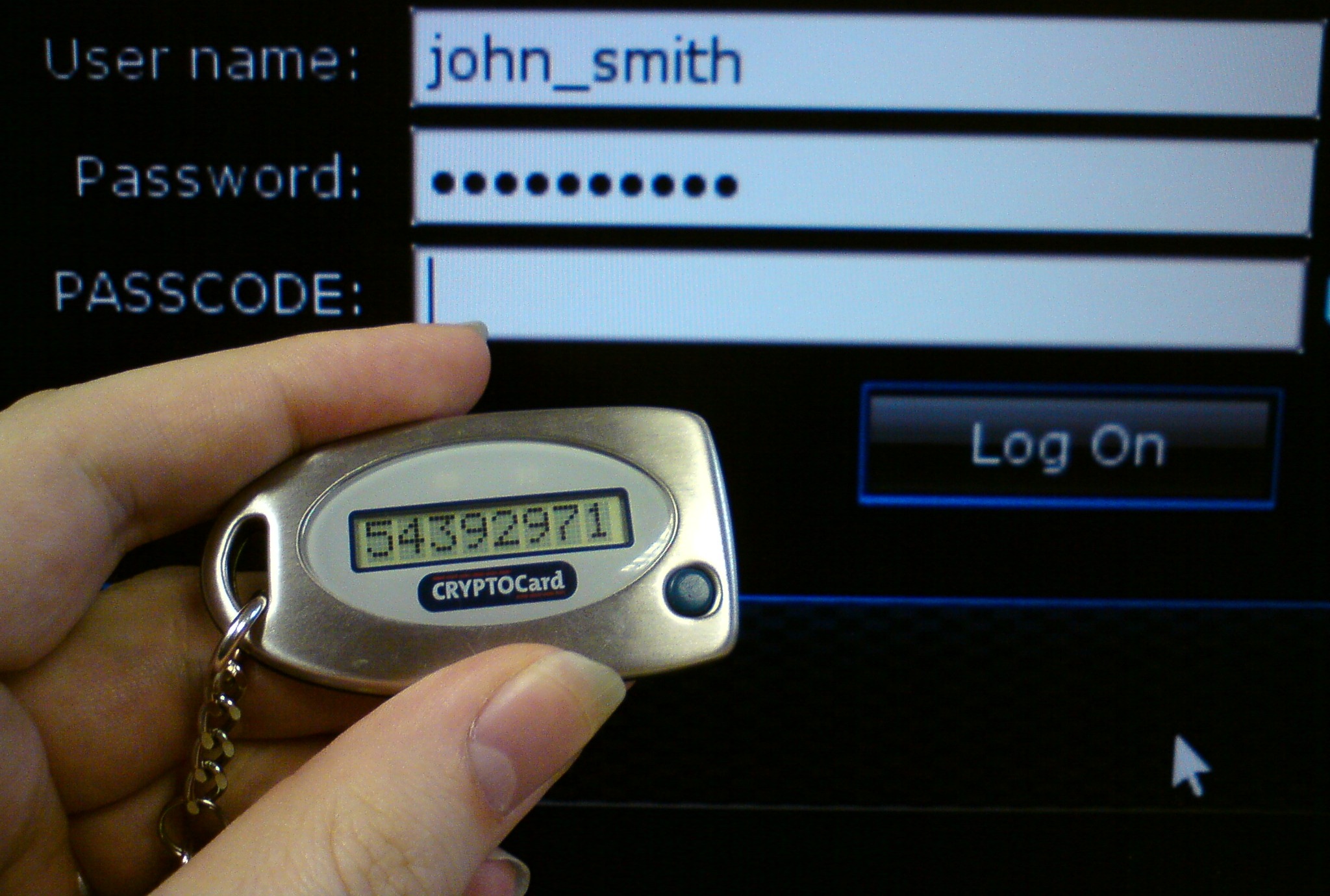
For years, Indian internet users have been conditioned to rely on SMS OTPs for everything from Net Banking to logging into Swiggy. While SMS 2FA is better than nothing, it has critical vulnerabilities that modern attackers exploit easily:
- SIM Swapping: Fraudsters use fake identity proofs to convince telecom executives at Jio, Airtel, or Vi to issue a duplicate SIM card. Once activated, all your OTPs land directly on the hacker's phone.
- SMS Sniffing Malware: Malicious Android apps (often disguised as utility apps or fake customer care portals) read incoming SMS messages silently and forward them to remote servers.
- Telecom Network Reliability: If you are traveling abroad or staying in a basement with poor network coverage, delayed or missing SMS OTPs can lock you out of your own banking portals.
To counter these risks, transitioning to time-based authenticator apps or physical hardware keys is the smartest security upgrade you can make today.
Comparing 2FA Methods: Which One Should You Choose?
Different accounts require different levels of security. Here is a breakdown of the three primary 2FA methods to help you decide which to implement across your digital footprint:
| Method | Security Level | Convenience | Best Suited For |
|---|---|---|---|
| SMS OTP | Low to Medium | High | Low-risk apps, food delivery, local e-commerce portals. |
| Authenticator App (TOTP) | High | High | Primary email (Gmail/Outlook), Social Media, Password Managers. |
| Hardware Security Key (e.g., YubiKey) | Maximum | Medium | Financial/Net Banking, Crypto Wallets, High-profile business accounts. |
Step-by-Step Guide: Setting Up Google Authenticator (The Gold Standard)
Time-based One-Time Password (TOTP) apps generate a new 6-digit code every 30 seconds. Because these codes are generated locally on your device based on a cryptographic seed, they do not require an active internet connection or cellular network to function.
Step 1: Download a Trusted Authenticator App
Go to the Google Play Store or Apple App Store and download a reputable authenticator app. Excellent choices include Google Authenticator, Microsoft Authenticator, or Aegis Authenticator (an open-source, highly secure choice for Android users).
Step 2: Locate the 2FA Settings in Your Account
Log into the account you want to secure (for example, your Google Account). Navigate to Security or Account Settings, look for 2-Step Verification or Two-Factor Authentication, and select "Authenticator App" as your preferred verification method.
Step 3: Scan the QR Code
Your screen will display a unique QR code. Open your newly downloaded authenticator app on your smartphone, tap the "+" or "Add Account" button, and select "Scan QR Code". Point your phone camera at the computer screen to link the account instantly.
Step 4: Save the Secret Key / Recovery Codes
Below the QR code, the website will display a text-based backup key (a string of alphanumeric characters) and a list of backup/recovery codes. Do not skip this step. Copy these codes, print them out, or write them down in a secure physical diary. If your phone gets damaged, stolen, or reset, these recovery codes are the only way to regain access to your account.
Step 5: Verify and Complete Setup
The setup wizard will ask you to enter the current 6-digit code showing in your authenticator app. Type it in before the 30-second timer expires to verify that the app and the server are perfectly synchronized. Once confirmed, your setup is complete.
How to Secure WhatsApp with Two-Step Verification
WhatsApp is the primary communication channel for millions of Indians. WhatsApp accounts are frequently targeted by scammers using social engineering to hijack accounts. Securing your WhatsApp takes less than two minutes.
- Open WhatsApp on your device and tap on the three dots in the top-right corner (Android) or go to Settings (iOS).
- Navigate to Account > Two-step verification.
- Tap Turn on or Enable.
- Create and enter a custom 6-digit PIN. This is a PIN you must remember; WhatsApp will periodically prompt you to enter it to keep it fresh in your memory.
- Provide a backup email address. If you forget your PIN, WhatsApp will send a reset link to this email address. Make sure this email account is already secured with an authenticator app!
Securing Your Google / Gmail Account
Because your Gmail account acts as the master key to your entire digital footprint (including Android phone backups, Google Pay, and password resets for other sites), securing it is your absolute highest priority.
- Go to your Google Account dashboard.
- On the left navigation panel, click on Security.
- Under the "How you sign in to Google" section, click on 2-Step Verification.
- Click Get Started and verify your password.
- While Google may default to sending prompts to your phone, scroll down and select Authenticator app as your primary second step.
- Follow the scanning steps outlined in the Google Authenticator section above.
- Scroll further down to the Backup codes section, generate a set of 10 codes, and save them in a highly secure location.
Common Mistakes to Avoid When Using 2FA
While 2FA makes your accounts incredibly secure, mistakes during setup or daily usage can lock you out of your own digital life. Avoid these common pitfalls:
- Ignoring Backup Codes: The absolute biggest mistake users make is scanning the QR code and closing the window without saving the recovery keys. If you lose your phone, you lose access to those accounts permanently.
- Leaving Cloud Backup Unsecured: Some authenticator apps sync your 2FA keys to your Apple iCloud or Google Drive. While convenient, if your cloud account is compromised, your 2FA keys are too. Ensure your primary cloud accounts are locked down with physical security keys or strong, unique passwords.
- Relying on SMS for High-Value Accounts: Never use SMS 2FA for cryptocurrency exchange accounts, primary business emails, or banking portals if they offer authenticator app support.
- Sharing OTPs Over Calls: No bank official, telecom executive, or customer care agent will ever ask for your 2FA code or OTP. If someone calls asking for a code to "block a fraudulent transaction" or "upgrade your SIM card," hang up immediately.
Troubleshooting Common 2FA Issues
My Authenticator App Codes Are Not Working
The most common reason for code rejection is a time synchronization issue. Because TOTP relies on time, your phone's clock must match the exact global standard time. To fix this:
- On Android (Google Authenticator): Open the app, tap the menu icon (or your profile picture), go to Settings > Time correction for codes > Sync now.
- On iOS: Go to iPhone Settings > General > Date & Time, and ensure Set Automatically is toggled on.
I Lost My Phone and Don't Have My Backup Codes
If you find yourself locked out without backup codes, your recovery path depends on the platform:
- For Google/Social Media: Use the "Try another way to sign in" link on the login page. You may be asked to verify via a backup email address, a registered phone number (if SMS recovery was left active), or by answering security questions.
- Identity Verification: Some platforms will require you to upload a government-issued ID (such as an Aadhaar Card or PAN Card) to manually verify your identity. This manual recovery process can take anywhere from 24 hours to a week.
If you decide to upgrade your digital security by purchasing physical hardware keys (like YubiKeys) or investing in premium password managers like 1Password to manage your credentials, you can check out AloneDeals. We list verified coupons, active tech deals, and cashback offers to help you secure your online presence without breaking the bank.
Summary: Your Security Checklist
Securing your online presence is a continuous process. To ensure you are fully protected, perform this quick security audit today:
- Enable Two-Step Verification on WhatsApp using a strong 6-digit PIN.
- Migrate your primary email accounts (Gmail, Outlook) from SMS OTP to an Authenticator App.
- Locate, print, or safely store physical copies of your 2FA recovery codes.
- Enable 2FA on your password manager of choice.
- Educate your family members about the dangers of sharing OTPs over the phone.
Image source: Intel Free Press (BY-SA)